Introduction: How AI Tools Are Transforming Excel in 2026
Microsoft Excel is one of the most widely used tools for managing business data, preparing reports, tracking expenses, and analyzing information. However, many spreadsheet tasks still require considerable time, especially when working with complex formulas, large datasets, repetitive calculations, and detailed reports.
In 2026, artificial intelligence is making spreadsheet work faster and more accessible. Modern AI tools can generate Excel formulas from plain-English instructions, identify patterns in data, create charts, explain errors, and help automate repetitive tasks.
The best AI spreadsheet tools allow beginners and experienced professionals to work more efficiently without memorizing every Excel function. Whether you are a student, accountant, business owner, data analyst, or office professional, the right AI assistant can simplify your daily workflow.
In this article, we explore the best AI tools for Excel, their key features, their benefits, and how to choose the right solution for your needs.
Table of Contents
What Are AI Tools for Excel?
AI tools for Excel are applications or built-in assistants that use artificial intelligence to help users create, understand, analyze, and automate spreadsheet tasks.
Instead of manually writing a complicated formula, you can describe what you want in natural language. The AI assistant can suggest a formula, explain how it works, or help you troubleshoot an error.
For example, you could ask:
“Calculate total sales for each employee, but include only orders marked as Completed.”
An AI assistant may generate an appropriate SUMIFS formula and explain how to use it in your workbook.
Common capabilities include:
- Formula generation: Create Excel formulas from plain-English prompts.
- Data cleaning: Identify duplicates, inconsistent entries, and missing values.
- Data analysis: Summarize datasets, identify trends, and investigate unusual results.
- Chart creation: Recommend or generate visualizations from spreadsheet data.
- Workflow automation: Help create scripts, macros, and repeatable spreadsheet processes.
- Report generation: Turn spreadsheet findings into summaries and business reports.
The exact features depend on the tool, the file format, and your subscription.
Top 8 Best AI Tools for Excel in 2026
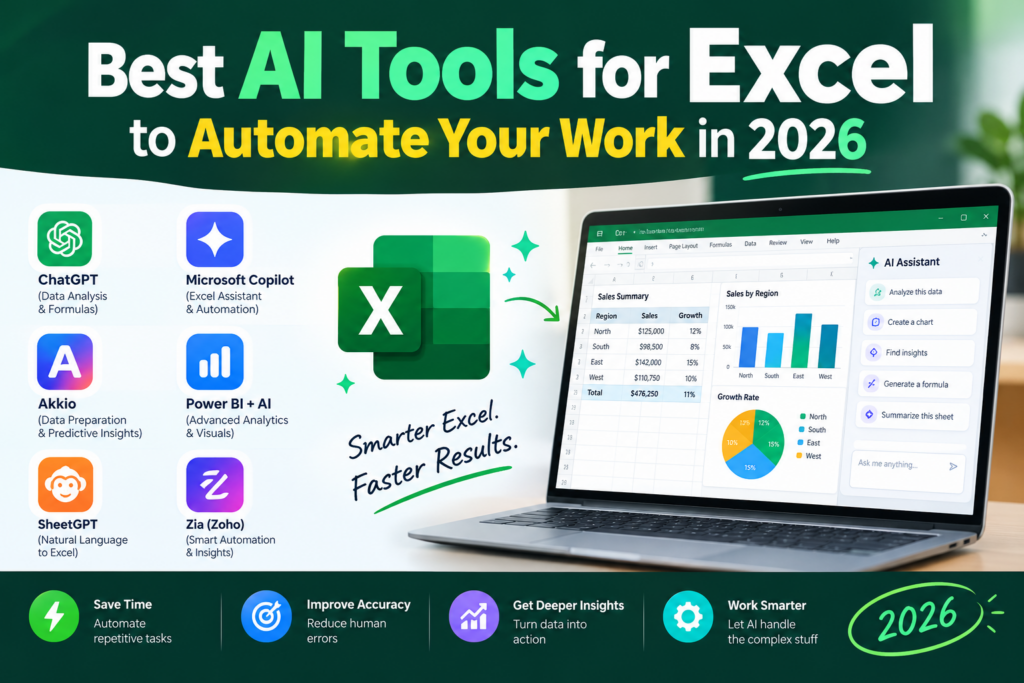
These tools cover different spreadsheet workflows, from formula assistance to advanced data analysis. Some work directly inside Excel, while others allow you to upload a workbook or copy and paste data.
1. Microsoft Copilot in Excel — Best for Working Inside Excel
Microsoft Copilot is an AI assistant integrated into eligible Microsoft 365 workflows. It can help users understand spreadsheet data, develop formulas, identify patterns, and perform supported spreadsheet tasks using natural-language instructions.
Key features:
- Assistance with Excel formulas.
- Natural-language questions about spreadsheet data.
- Help with summaries, trends, and insights.
- Support for selected charting and data-analysis workflows.
Best for: Professionals and businesses that already use Microsoft Excel and Microsoft 365.
Example use case: Ask Copilot to help identify monthly sales trends or explain why a particular formula returns an unexpected result.
Important: Availability depends on your Microsoft 365 subscription, account type, region, and the feature being used. Check your plan before purchasing an additional license.
2. ChatGPT — Best for Excel Formulas and Data Analysis
ChatGPT can help users write Excel formulas, debug errors, explain functions, analyze supported spreadsheet files, and develop automation scripts.
It is particularly useful when you need to describe a spreadsheet problem in everyday language rather than search through documentation.
Key features:
- Excel formula generation and explanation.
- Help with functions such as
XLOOKUP,SUMIFS, andIF. - Analysis of uploaded spreadsheet files when file analysis is available.
- Assistance with charts, data summaries, and VBA code.
Best for: Students, freelancers, analysts, and anyone who needs flexible spreadsheet assistance.
Example use case: Upload a sales spreadsheet and ask for a summary of the highest-performing products, monthly trends, and possible outliers.
Why it stands out: ChatGPT can help with both Excel-specific questions and the wider reasoning needed to understand what the numbers mean. File uploads and advanced capabilities are subject to plan limits.
3. GPTExcel — Best Excel Formula Generator
GPTExcel is a specialized AI tool for spreadsheet-related tasks. It can generate and explain formulas and assist with other spreadsheet code, including VBA, depending on the feature offered.
For users who regularly struggle with Excel syntax, an Excel formula generator can significantly reduce the time spent searching for the right function.
Key features:
- Generate formulas from text descriptions.
- Explain existing formulas.
- Help debug formula errors.
- Assist with VBA and spreadsheet scripts.
Best for: Beginners, Excel learners, and professionals who frequently use complex formulas.
Example use case: Ask the tool to calculate a bonus of 10% for employees whose sales exceed ₹100,000 and return zero for everyone else.
Why it stands out: Its spreadsheet-focused approach makes it a practical starting point for formula generation without requiring a full data-analysis workflow.
4. Formula Bot — Best for Formula Help and Spreadsheet Questions
Formula Bot is designed to help users work with spreadsheet formulas and data. Depending on the available features, it can also assist with analyzing uploaded data and creating visual summaries.
Key features:
- Natural-language formula generation.
- Formula explanations and troubleshooting.
- Spreadsheet data analysis.
- Assistance with charts and structured outputs.
Best for: Users who want a dedicated spreadsheet assistant without learning advanced Excel syntax.
Example use case: Generate a formula that counts all invoices marked “Paid” while excluding cancelled invoices.
Why it stands out: It brings several common spreadsheet tasks together in a focused interface. Review the current plan limits before depending on it for frequent use.
5. Ajelix — Best for Excel Automation and VBA
Ajelix provides AI-powered spreadsheet assistance, including formula generation and tools for working with spreadsheet scripts.
Visual Basic for Applications (VBA) is Excel’s scripting language for automating tasks such as formatting reports, processing rows, and creating repeatable workflows.
Key features:
- Excel formula generation.
- VBA code assistance.
- Script explanation and debugging.
- Spreadsheet templates and selected reporting tools.
Best for: Office professionals and advanced Excel users who want to reduce repetitive manual work.
Example use case: Generate a VBA macro that formats a monthly sales report, applies consistent number formats, and highlights values that fall below a defined target.
Why it stands out: It can help bridge the gap between ordinary spreadsheet use and more advanced automation. Always review generated code before running it on important files.
6. Julius AI — Best for AI Data Analysis
Julius AI focuses on analyzing data through natural-language questions and generating useful visual outputs. It can help users explore datasets without manually creating every calculation or chart.
For people working with reports, customer records, financial summaries, or sales data, AI data analysis can make it easier to discover patterns and ask follow-up questions.
Key features:
- Analysis of supported spreadsheet and CSV files.
- Natural-language questions about data.
- Charts and visualizations.
- Statistical analysis and data summaries.
Best for: Analysts, researchers, students, and professionals who work with datasets.
Example use case: Analyze monthly revenue data to identify seasonal patterns and compare the performance of different product categories.
Why it stands out: It is useful when the main challenge is understanding what the data shows, rather than simply writing a formula.
7. Claude — Best for Complex Formula Explanations
Claude can help users understand complicated spreadsheet logic, troubleshoot formulas, interpret workbook data, and write scripts for selected automation tasks.
It can be especially useful when a spreadsheet contains nested conditions or formulas that are difficult to maintain.
Key features:
- Formula writing and debugging.
- Explanations of complex spreadsheet logic.
- Assistance with data interpretation.
- Help writing VBA and other code.
Best for: Users who need detailed explanations, formula reviews, and help with multi-step spreadsheet problems.
Example use case: Explain a nested IF formula and rewrite it into a clearer version using IFS or another suitable function.
Why it stands out: Its conversational approach can help users understand not only what a formula does, but also why a particular solution may be appropriate.
8. Numerous.ai — Best for AI Tasks Across Many Rows
Numerous.ai focuses on applying AI to spreadsheet workflows, including processing text and performing repeated AI-assisted tasks across rows in supported spreadsheet environments.
This can be helpful when manual processing would require reading hundreds of individual entries.
Key features:
- AI-assisted text classification.
- Text extraction and categorization.
- Repeated processing of spreadsheet entries.
- Support for selected Excel and Google Sheets workflows.
Best for: Marketing teams, e-commerce businesses, researchers, and users working with text-heavy spreadsheets.
Example use case: Categorize customer feedback into groups such as pricing, product quality, delivery, and customer service.
Why it stands out: It can help turn unstructured text into organized spreadsheet data. Confirm compatibility and usage limits for your specific Excel setup.
Comparison of the Best AI Spreadsheet Tools
| AI tool | Best use | Main benefit |
|---|---|---|
| Microsoft Copilot | Excel workflows | Assistance within Excel |
| ChatGPT | Formulas and analysis | Flexible AI assistance |
| GPTExcel | Formula generation | Formula writing and explanation |
| Formula Bot | Spreadsheet questions | Formula and data support |
| Ajelix | Automation | VBA and scripting assistance |
| Julius AI | Data analysis | Insights and visualizations |
| Claude | Complex formulas | Detailed reasoning and explanations |
| Numerous.ai | Repeated row-based tasks | AI-assisted data processing |
How to Use an Excel Formula Generator
An Excel formula generator can help you create formulas without memorizing Excel’s syntax. Follow these steps to get better results.
Step 1: Describe Your Goal Clearly
Explain what you want the formula to calculate and mention the relevant column names.
For example:
“Calculate the total revenue in column D only when the payment status in column C is Paid.”
Step 2: Provide the Spreadsheet Structure
Tell the AI which columns contain the required data. If your data starts in row 2, include that information when relevant.
Step 3: Generate the Formula
The AI may suggest a formula such as:
=SUMIF(C2:C100,"Paid",D2:D100)
This formula adds values in column D when the corresponding cell in column C contains “Paid”.
Step 4: Test the Formula
Paste the formula into a test cell and compare the result with a small sample calculated manually.
Step 5: Ask for an Explanation
If the formula is unfamiliar, ask the AI to explain each function and identify possible errors or edge cases.
Pro tip: Include sample column names, expected output, and any special conditions in your prompt. Specific instructions generally produce more useful formulas.
How AI Data Analysis Can Automate Your Work
AI data analysis can help transform raw spreadsheet data into meaningful insights. Rather than manually checking every row, you can ask questions about your dataset and use AI to help investigate the results.
1. Automate Sales Reports
AI can help summarize sales by product, employee, region, or month. It can also suggest charts and formulas for tracking performance.
2. Clean Spreadsheet Data
AI can help identify duplicate records, inconsistent date formats, spelling differences, and missing values. Review proposed changes before applying them to your original dataset.
3. Analyze Business Performance
Ask an AI assistant to compare monthly revenue, calculate growth rates, identify underperforming categories, or explain unusual changes.
4. Create Charts and Dashboards
AI can recommend suitable visualizations for sales trends, expenses, customer behavior, and other business metrics. You should still verify that the chart uses the correct data range and labels.
5. Automate Repetitive Tasks
AI can help create VBA macros or scripts to format reports, organize worksheets, and repeat routine calculations. Generated code should be reviewed and tested on a copy of your workbook before use.
Best AI Tool for Excel: Which One Should You Choose?
The right choice depends on your primary task and budget.
- For beginners: Start with ChatGPT or GPTExcel for formula explanations and troubleshooting.
- For Microsoft 365 users: Consider Copilot if it is available under your organization’s license.
- For data analysis: Explore ChatGPT or Julius AI for questions about uploaded datasets.
- For VBA automation: Try Ajelix or ChatGPT to draft and explain scripts.
- For classifying large amounts of text: Consider Numerous.ai if it supports your spreadsheet workflow.
You do not necessarily need several paid tools. Start with one that solves your most frequent problem, test it with sample data, and expand only if you need additional capabilities.
Important Tips for Using AI Tools Safely in Excel
AI can save time, but it should not replace checking your calculations.
- Verify formulas: Check the formula against known results before applying it to a full workbook.
- Protect confidential information: Avoid uploading customer records, employee details, passwords, or sensitive financial data to tools that have not been approved for that use.
- Keep backups: Save a separate copy before using generated macros or bulk-editing workflows.
- Check assumptions: Confirm whether the AI has handled blank cells, duplicates, dates, and currency correctly.
- Review generated code: Never run unfamiliar VBA or scripts on important files without understanding their effects.
- Check licensing: Confirm your tool’s usage limits and commercial terms before relying on it for business reporting.
Frequently Asked Questions (FAQs)
1. What are the best AI tools for Excel in 2026?
Microsoft Copilot, ChatGPT, GPTExcel, Formula Bot, Ajelix, Julius AI, Claude, and Numerous.ai are useful options. The best choice depends on whether you need formulas, data analysis, automation, or text processing.
2. Can AI generate Excel formulas automatically?
Yes. An AI formula generator can turn a plain-English description into a suggested Excel formula. You should test the result because AI-generated formulas can contain syntax errors or incorrect assumptions.
3. Is there a free AI tool for Excel?
Some tools offer free access or limited usage. ChatGPT, GPTExcel, Formula Bot, and Claude are potential starting points, but available features and usage limits depend on the current plan.
4. Can AI analyze Excel files?
Yes. Tools that support spreadsheet uploads or workbook integration can help summarize data, identify trends, create visualizations, and investigate specific questions. Results should be checked against the underlying data.
5. Can AI automate repetitive Excel tasks?
Yes. AI can help develop formulas, macros, and scripts for repetitive tasks such as formatting reports, categorizing data, and generating summaries. Some tools can also perform supported actions directly within a workbook.
6. Is AI better than Excel formulas?
AI and Excel formulas serve different purposes. Formulas provide repeatable calculations, while AI helps users create formulas, explain errors, explore data, and develop automation. Combining both approaches is often more useful than replacing formulas entirely.
7. Can AI replace Excel experts?
AI can reduce manual work, but it does not eliminate the need for spreadsheet expertise. Professionals still need to understand business requirements, validate calculations, protect data, and interpret results correctly.
Conclusion
The best AI tools for Excel can help you spend less time writing formulas, cleaning datasets, and preparing repetitive reports. Microsoft Copilot is worth considering for eligible Excel workflows, while ChatGPT, GPTExcel, and Formula Bot can help with formula generation. Julius AI is useful for data exploration, and Ajelix can assist with VBA-based automation.
By combining AI spreadsheet tools, an effective Excel formula generator, and reliable AI data analysis, you can simplify everyday spreadsheet work and make better use of your time.
Start with a small, familiar task, verify the results, and gradually introduce AI into more complex workflows. With the right approach, Excel can become a more efficient tool for learning, reporting, and business decision-making.